Find Your UUID: Complete Guide for macOS, Windows & Linux
[01]Why You Need Your UUID
Your Claude Code Buddy is deterministically generated from your account identifier — either an accountUuid (UUID format like acde070d-8c4c-4f0d-9d8a-162843c10333) or a userID (hex string like a1b2c3d4e5f6a7b8c9d0e1f2a3b4c5d6). Both work with our Buddy Checker.
This identifier is stored locally in your Claude configuration file at ~/.claude.json. It is not a credential — it cannot be used to authenticate or impersonate your account. It's simply the seed that determines which of the 18 species, 5 rarity tiers, and countless stat combinations your Buddy will have.
Below we cover every method on all three major platforms, plus troubleshooting for common issues.
[02]Method 1: Terminal Command (Recommended)
The fastest and most reliable method. Open your terminal and run a single command.
macOS (Terminal / iTerm2)
Open Terminal.app (or iTerm2) and run:
cat ~/.claude.json | grep -E 'accountUuid|userID'You should see output like:
"accountUuid": "acde070d-8c4c-4f0d-9d8a-162843c10333"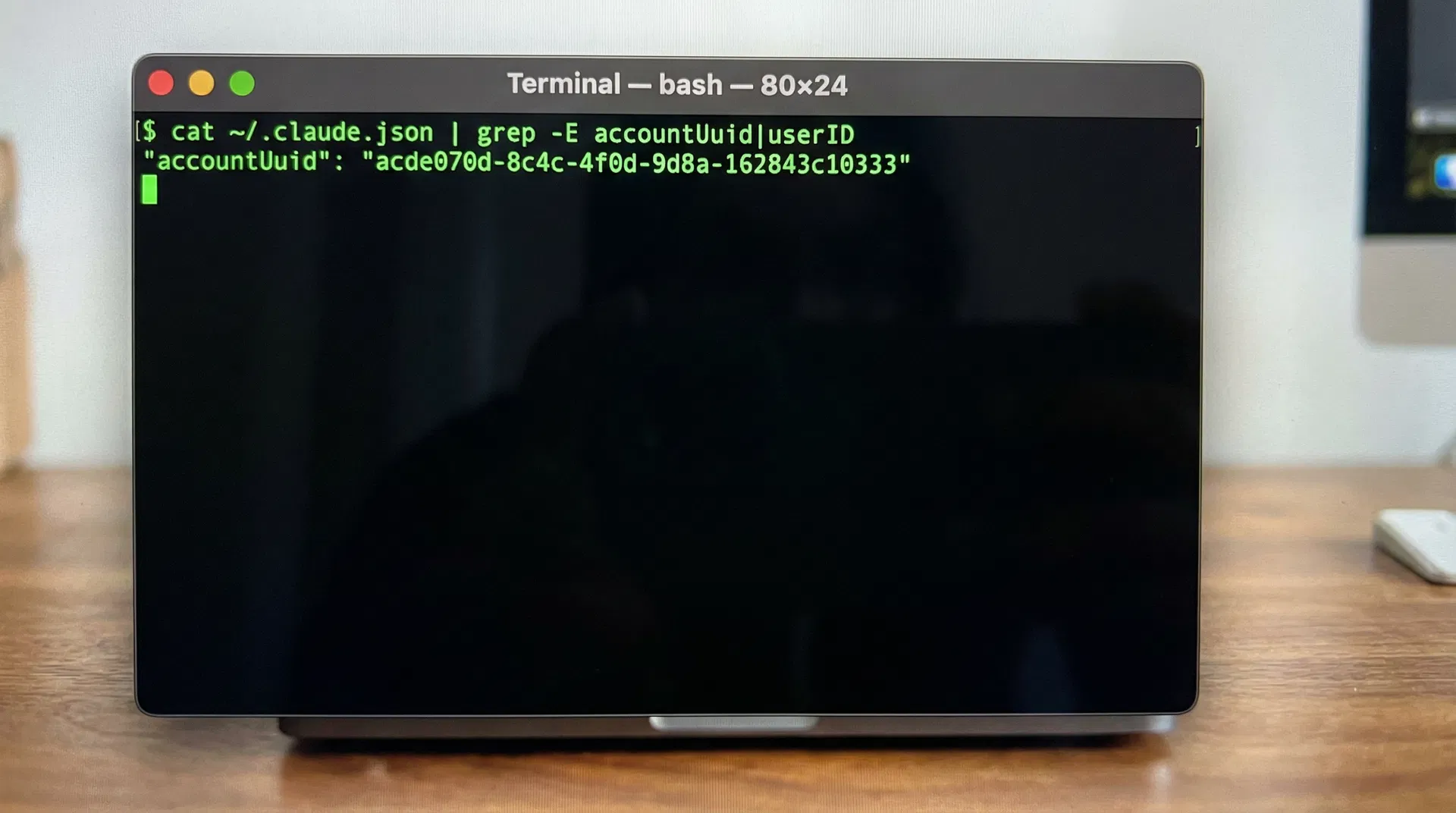
Windows (PowerShell)
Open PowerShell (press Win + X → "Windows PowerShell") and run:
Select-String 'accountUuid|userID' ~\.claude.jsonThe output will show the matching line with your UUID:
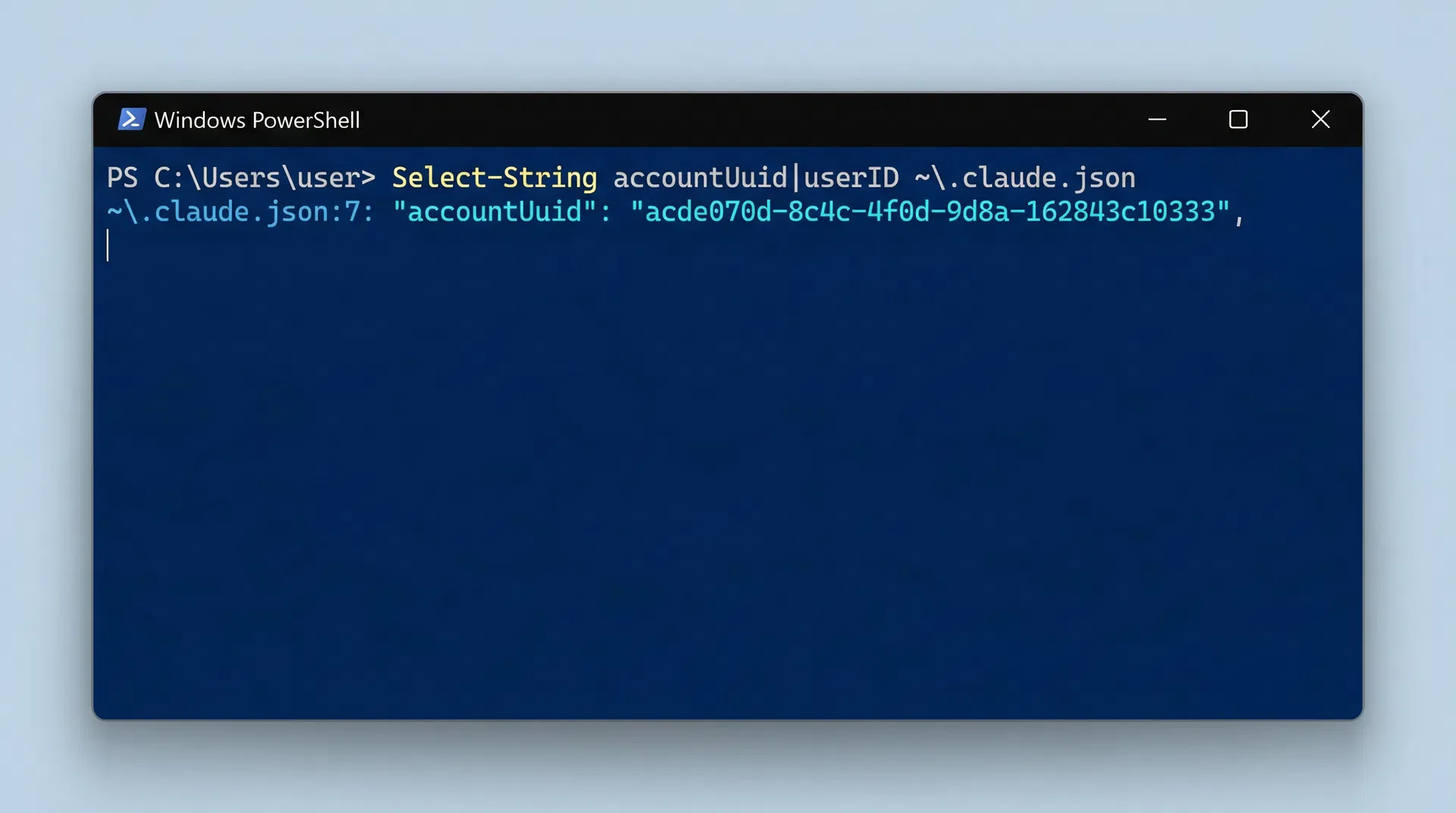
Linux (Bash / Zsh)
Open your terminal emulator and run the same command as macOS:
cat ~/.claude.json | grep -E 'accountUuid|userID'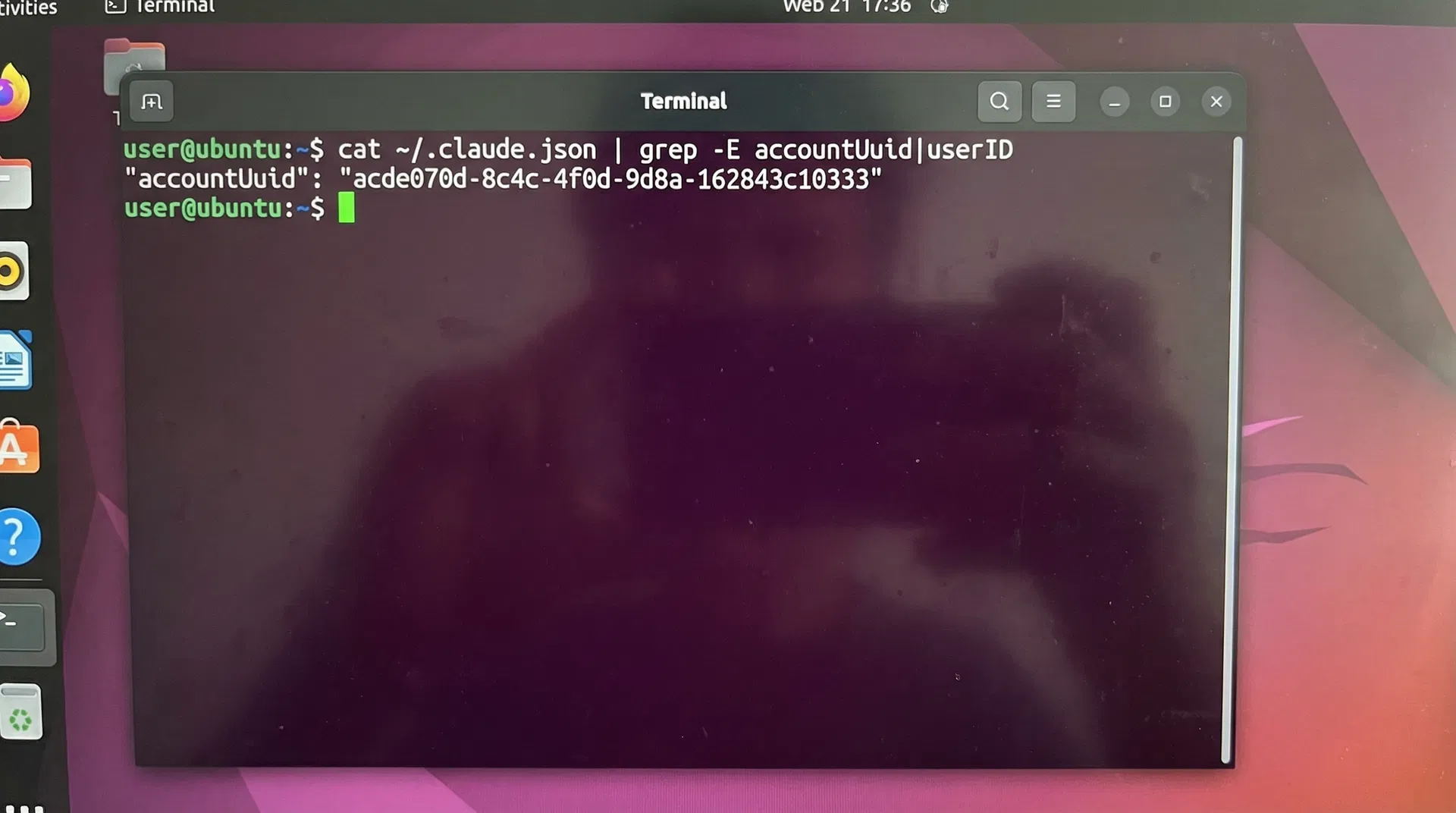
Tip: If you get "No such file or directory", it means Claude Code hasn't created the config file yet. Make sure you've opened Claude Code at least once and signed in.
[03]Method 2: Open the Config File Manually
If you prefer a visual approach, you can open the configuration file directly in any text editor.
File Location
| Platform | File Path |
|---|---|
| macOS | ~/.claude.json → /Users/yourname/.claude.json |
| Windows | ~\.claude.json → C:\Users\yourname\.claude.json |
| Linux | ~/.claude.json → /home/yourname/.claude.json |
Note: The file starts with a dot (.), which means it's hidden by default on macOS and Linux.
How to Show Hidden Files
- macOS Finder: Press
Cmd + Shift + .(period) to toggle hidden files - Windows Explorer: Click "View" tab → check "Hidden items"
- Linux (Nautilus): Press
Ctrl + Hto show hidden files
What to Look For
Open the file in VS Code, Notepad, or any text editor. Look for these fields:
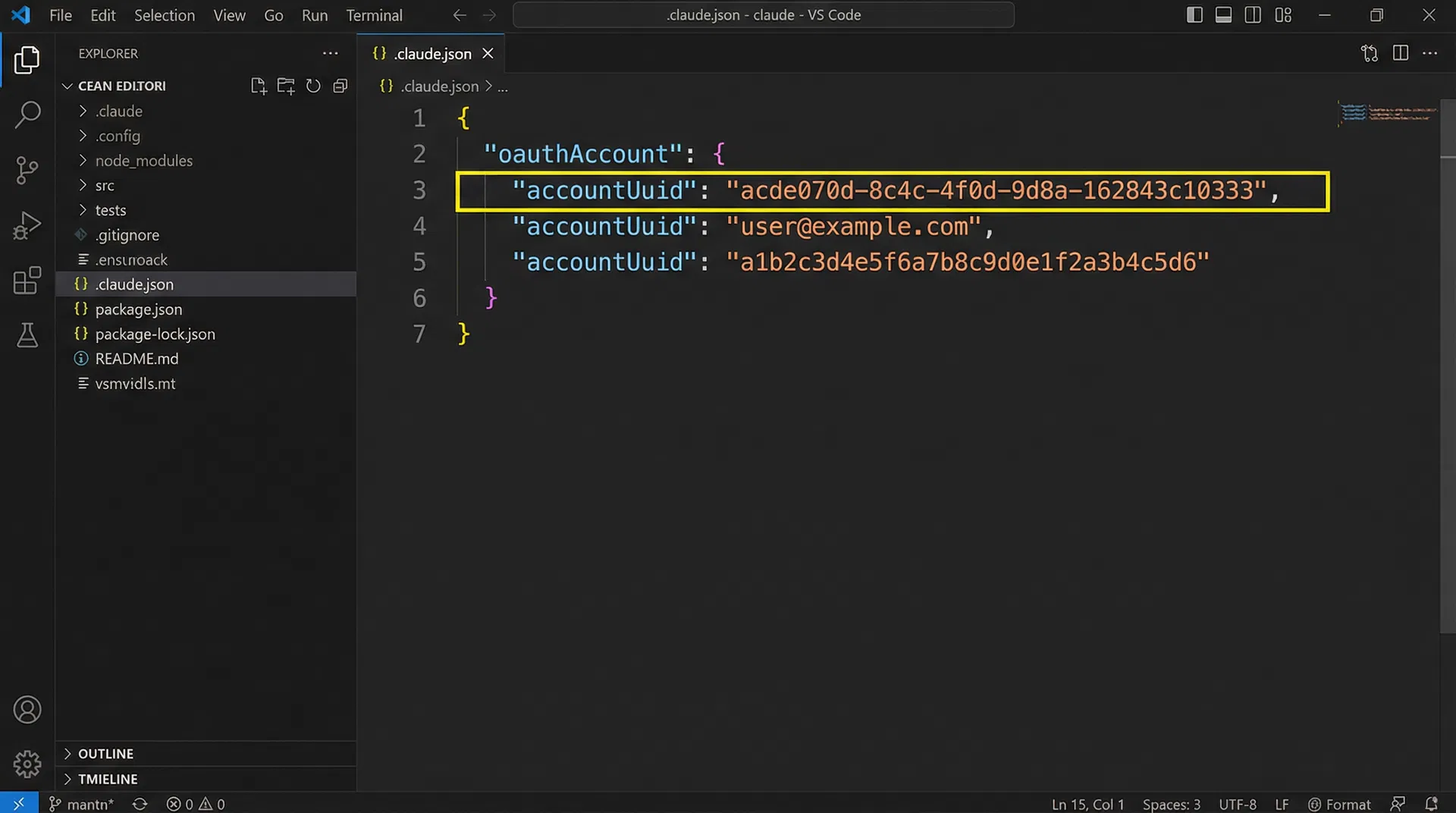
You're looking for either:
"accountUuid"— inside theoauthAccountobject (UUID format with dashes)"userID"— at the top level of the JSON (hex string without dashes)
Either one works with our Buddy Checker. Copy the value (without quotes) and paste it into the checker tool.
[04]Understanding UUID Formats
Our Buddy Checker accepts two different identifier formats. Here's how to tell them apart:
| Format | Field Name | Example | Where Found |
|---|---|---|---|
| accountUuid | accountUuid | acde070d-8c4c-4f0d-9d8a-162843c10333 | Inside oauthAccount object |
| userID | userID | a1b2c3d4e5f6a7b8c9d0e1f2a3b4c5d6 | Top-level field in JSON |
Which one should I use? Either works! The Buddy Checker automatically detects the format when you paste it in. You'll see a green indicator for accountUuid format or an amber indicator for userID format.
Are they the same? No — they're different identifiers for the same account. The accountUuid is typically used by OAuth/Team/Pro accounts, while userID is an older format. Both produce valid Buddy results through different code paths in the generation algorithm.
[05]Troubleshooting
"File not found" or "No such file"
The .claude.json file is created when you first sign into Claude Code. If it doesn't exist:
- Open Claude Code in your terminal (
claudecommand) - Sign in with your Anthropic account
- Close Claude Code
- Try the command again — the file should now exist
"Permission denied"
On macOS/Linux, try:
chmod 644 ~/.claude.json && cat ~/.claude.json | grep -E 'accountUuid|userID'File exists but no accountUuid or userID found
Your config file might have a different structure. Try viewing the entire file:
cat ~/.claude.jsonOr on Windows:
Get-Content ~\.claude.jsonLook for any field containing a UUID-like string (8-4-4-4-12 format with dashes) or a long hexadecimal string (32+ characters, only 0-9 and a-f).
"Can I ask Claude Code for my UUID?"
This method is not reliable. Claude Code is an AI assistant, and its ability to read local files depends on version, permissions, and sandbox restrictions. We recommend using the terminal command or manual file inspection methods described above.
[06]Security & Privacy
A common concern: "Is it safe to share my UUID?"
Yes. Your accountUuid and userID are not credentials. They cannot be used to:
- Log into your account
- Access your conversations or data
- Make API calls on your behalf
- Impersonate you in any way
They are simply identifiers used internally by Claude Code to generate your Buddy. Our Buddy Checker runs the generation algorithm entirely in your browser — your UUID is never sent to any server.
That said, if you prefer to keep your UUID private, that's perfectly fine too. You can check your Buddy without sharing it with anyone.
[07]Next Steps
Found your UUID? Here's what to do next:
- Check your Buddy — paste your UUID into the checker and discover your companion
- Browse all 18 species — learn about each species' lore, stats, and rarity
- Share your result — use the Share Card feature to generate a social media-ready image of your Buddy
- Understand your rarity — learn what your rarity tier means for your stats
Remember: your Buddy is already determined. The same UUID will always produce the same result. Check it now before the official /buddy command launches!